
To make an online payment through the School Management System, log in to your DLSL portal, generate a reference number, and follow the step-by-step instructions:
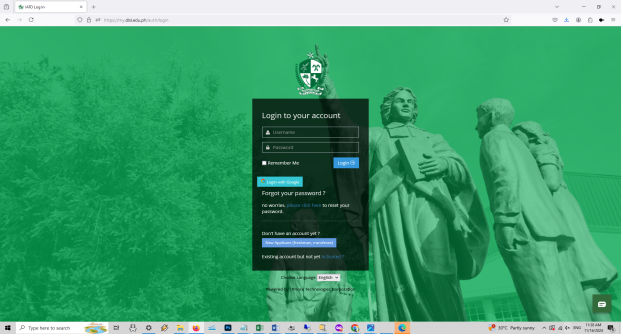
- Log in to the DLSL School Management System.
- Go to the Online Payment section.
- Choose Dragon Pay as the payment method.
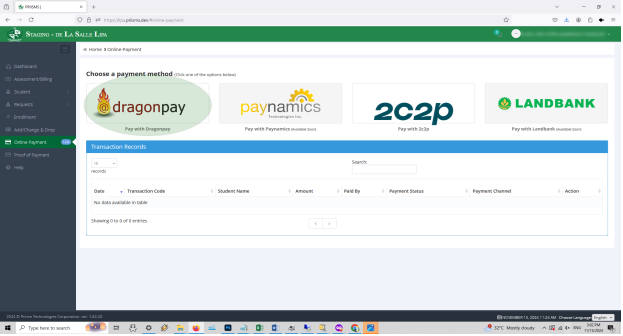 This will redirect you to the Dragon Pay online payment portal.
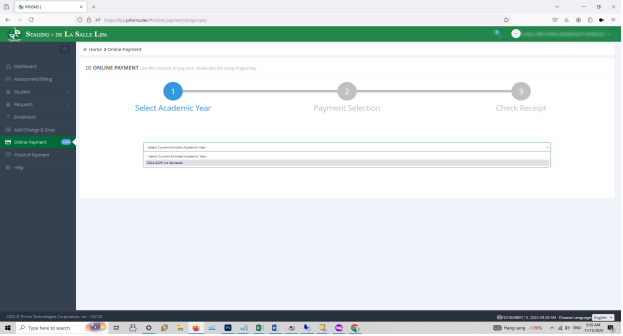
- Select the Academic Year.
- A breakdown of your payables will be displayed based on the payment plan chosen during enrollment.
- Choose the current payment card and click to proceed.
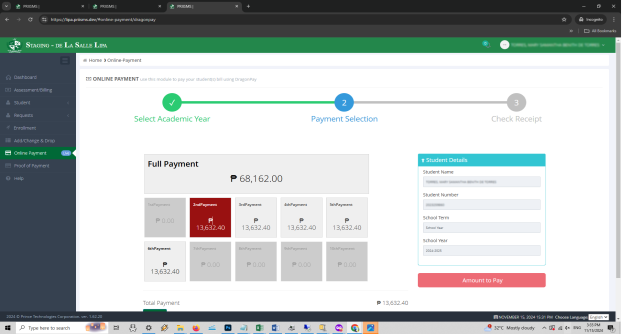 Note: Payments must be made in the order listed; you cannot skip a payment.
- After selecting the latest payment card, click Amount to Pay.
- Enter your email address to receive payment instructions, then select Pay Now.
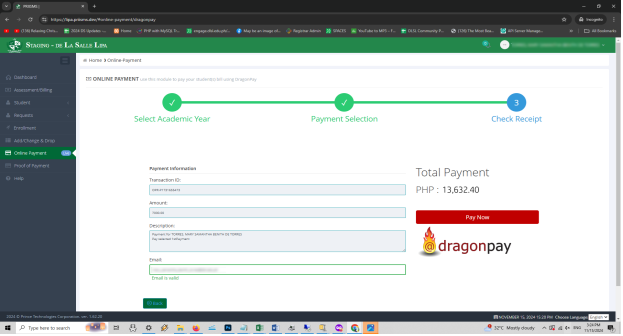
- A payment confirmation window will appear—click Yes to continue.
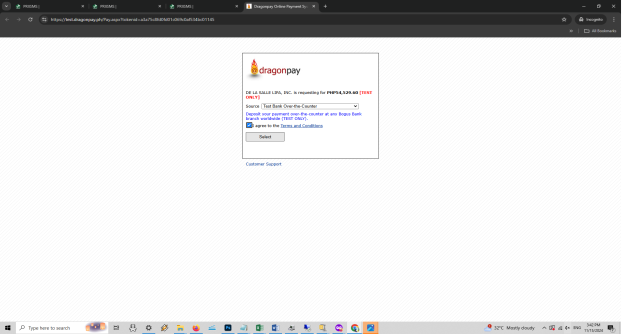
- The dragonpay merchant window will open. Choose a payment option and agree to the terms and conditions.
- A new window will appear. Click the button to receive the deposit instructions via email.
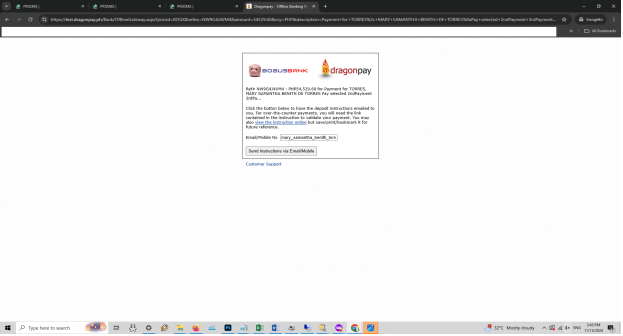
- Check your email and follow the payment instructions provided.
- A payment status window will display, confirming the payment status.
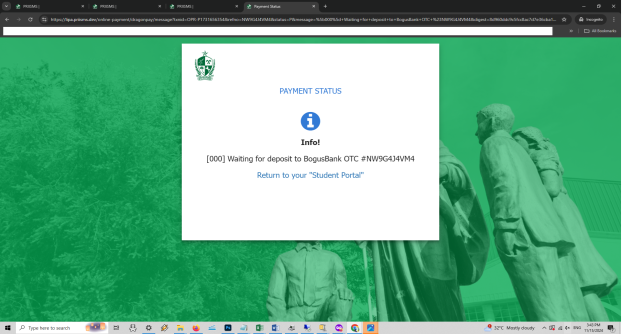
- Click Return to Your Student Portal to finalize the process.
Comments
0 comments
Please sign in to leave a comment.